Blog
The Reference Check That Wanted My Password
A polished reference request led to a fake Adobe page and a perfect Google login on a two-day-old domain. Neither my inbox nor my browser warned me.

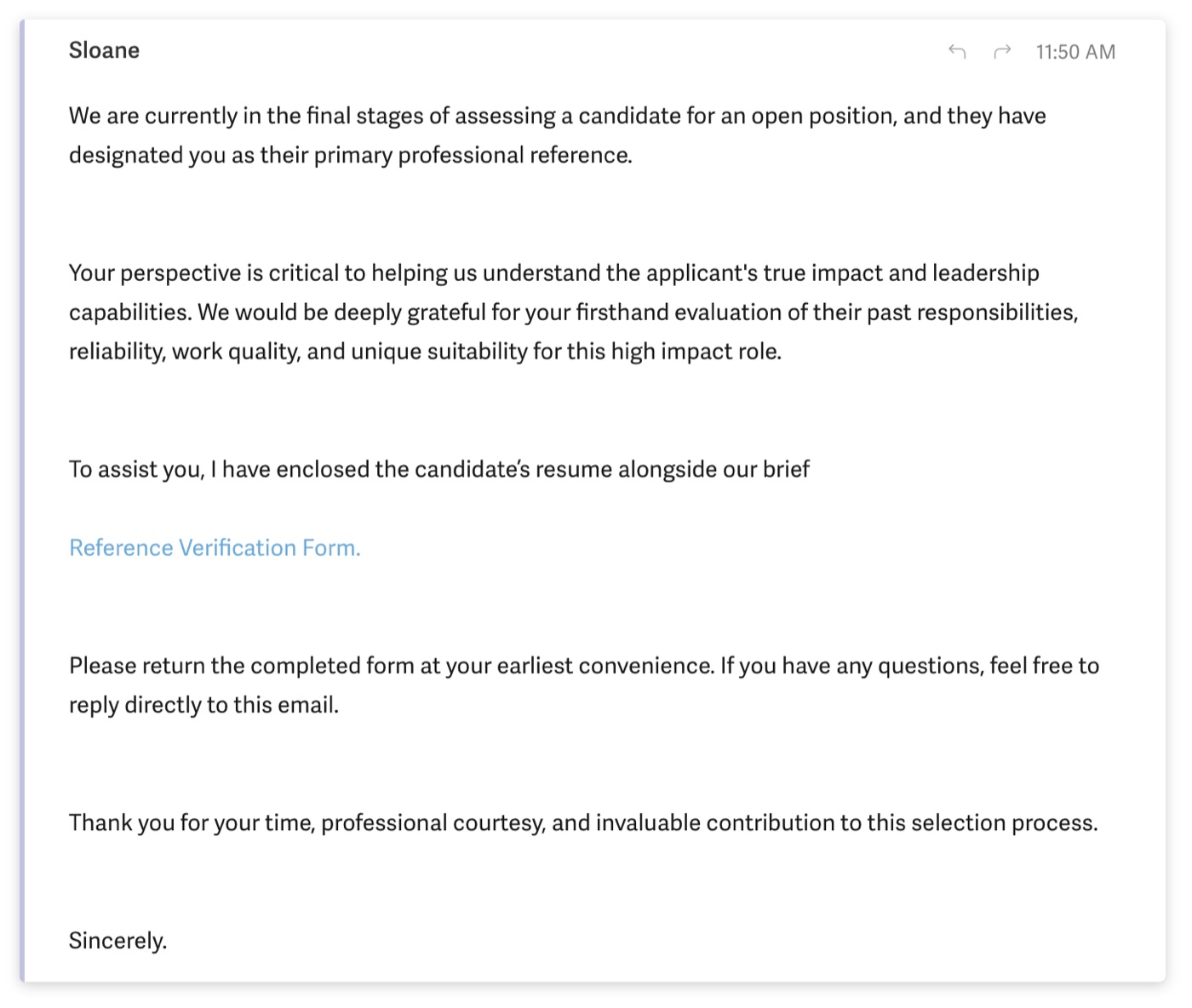
A woman named Sloane emailed me on Thursday. One of her candidates had listed me as their primary professional reference, and she wanted my firsthand take on their leadership.
I get these. Anyone who has managed people for long enough gets these. You want to help, because someday you will be the candidate.
There was no candidate. There was no Sloane. There was a very good fake login page waiting at the end of the link, and I want to walk you through it screen by screen, because this is the shape of phishing for the next few years.
Read the email the way a busy person reads it
Nothing in that email trips the alarms we were all trained on.
No misspellings. No broken grammar. No Nigerian prince. No "your account will be suspended in 24 hours." It is polite, a little flattering, and it asks for something reasonable. It even invites me to reply directly with questions, which is what a real recruiter would say.
Now read it the way a suspicious person reads it:
- No company name. "An open position." Which company? It never says.
- No candidate name. A real reference check leads with who the candidate is. This one cannot, because it was sent to thousands of people.
- No last name, no title, no signature. It ends with "Sincerely." and a period. Nothing after it.
- The ask is a link, not a call. Every real reference check I have done in twenty-eight years was a phone call or a short questionnaire from a known HR platform. Nobody needs you to log in to read a resume.
Those tells are subtle. They are also the only tells left.
The link opens a fake Adobe document
Click "Reference Verification Form" and you land on what looks like a shared PDF. There is a document blurred out in the background, a real-looking toolbar, and an Adobe box on top asking you to pick your email provider to view the file.
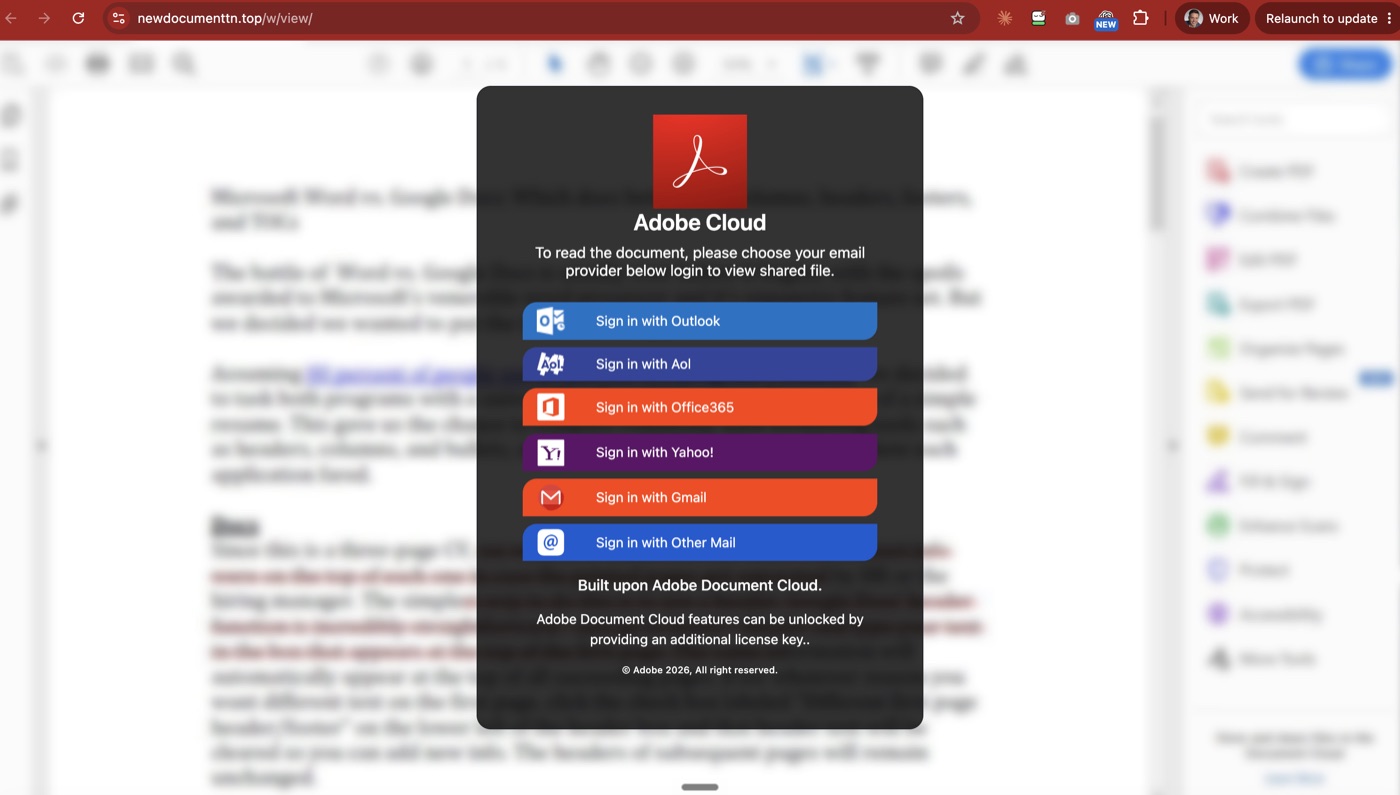
Six buttons. Outlook, AOL, Office365, Yahoo, Gmail, and "Other Mail." That menu tells you what this is. It is a kit built to harvest whichever password you happen to have, and they do not care which one.
Look at the address bar: newdocumenttn[.]top. Not adobe.com. Not anything Adobe owns.
Look at the fine print too: "All right reserved." "Unlocked by providing an additional license key.." with two periods. Somebody wrote the email with care and built the landing page in a hurry.
Then it asks for your Gmail password
Pick Gmail and you get this.
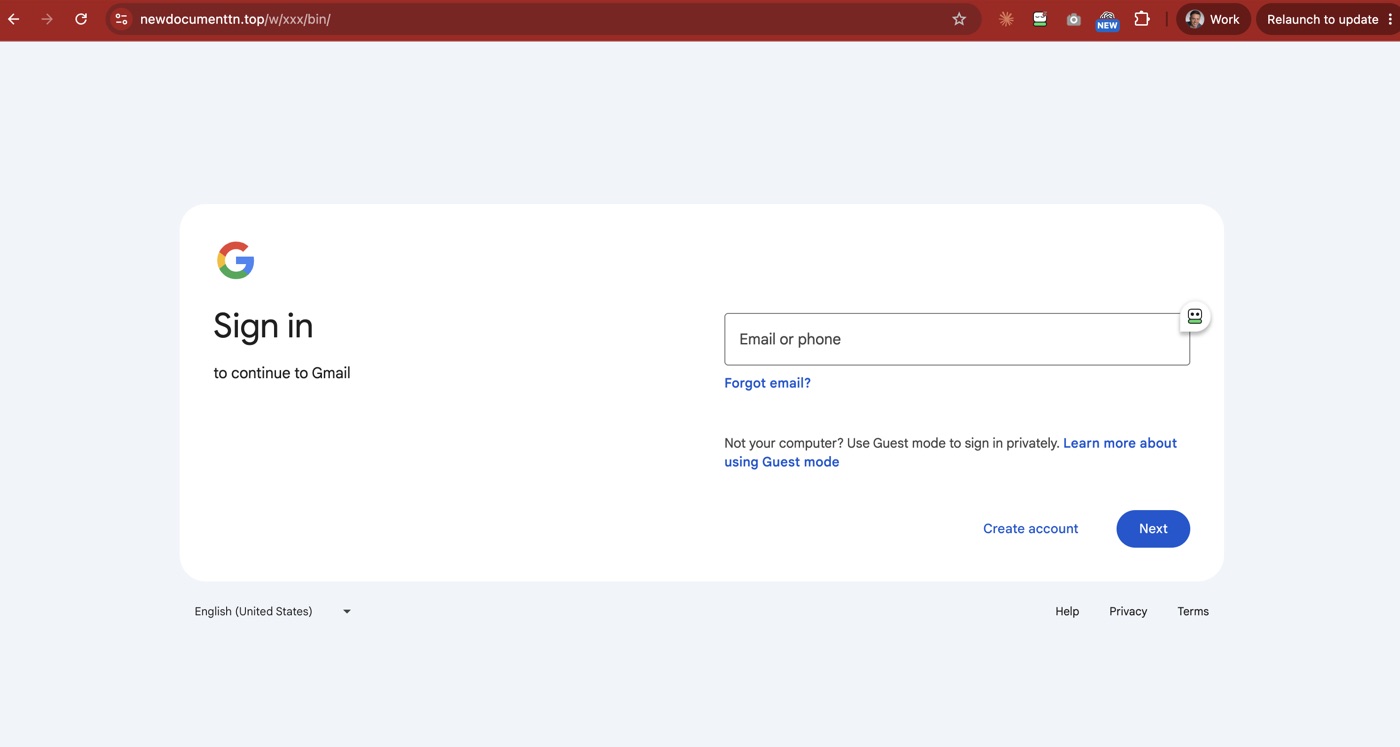
That is a nearly perfect copy of the Google sign-in screen. Same logo, same layout, same "Forgot email?" link, same footer. If you saw it in a tab without the address bar, you would type your password into it.
The only thing it cannot fake is the address bar.
The real Google sign-in lives at accounts.google.com. Always. Not a Google lookalike, not a subdomain of something else, not a "document" site that happens to show a Google logo. This page lives at newdocumenttn[.]top/w/xxx/bin/. Nothing about that address belongs to Google, or Adobe, or any company you have heard of. It is a random word mashup on a .top domain, followed by a path that looks like a placeholder somebody forgot to rename.
Here is how to read an address in about two seconds. Find the part right before the first single slash. Read it right to left: the ending (.com, .top), then the name just before it. That pair is who actually owns the page. accounts.google.com is Google. google.com.signin-verify.top belongs to signin-verify.top. Google is nowhere in it. Everything else in the address is decoration the attacker controls.
It is already on more than one domain
I captured the same page on a second domain about a minute apart: kendocment[.]top. Same overlay, same buttons, same typos. Note the misspelling of "document." These domains cost a couple of dollars each and they are disposable.
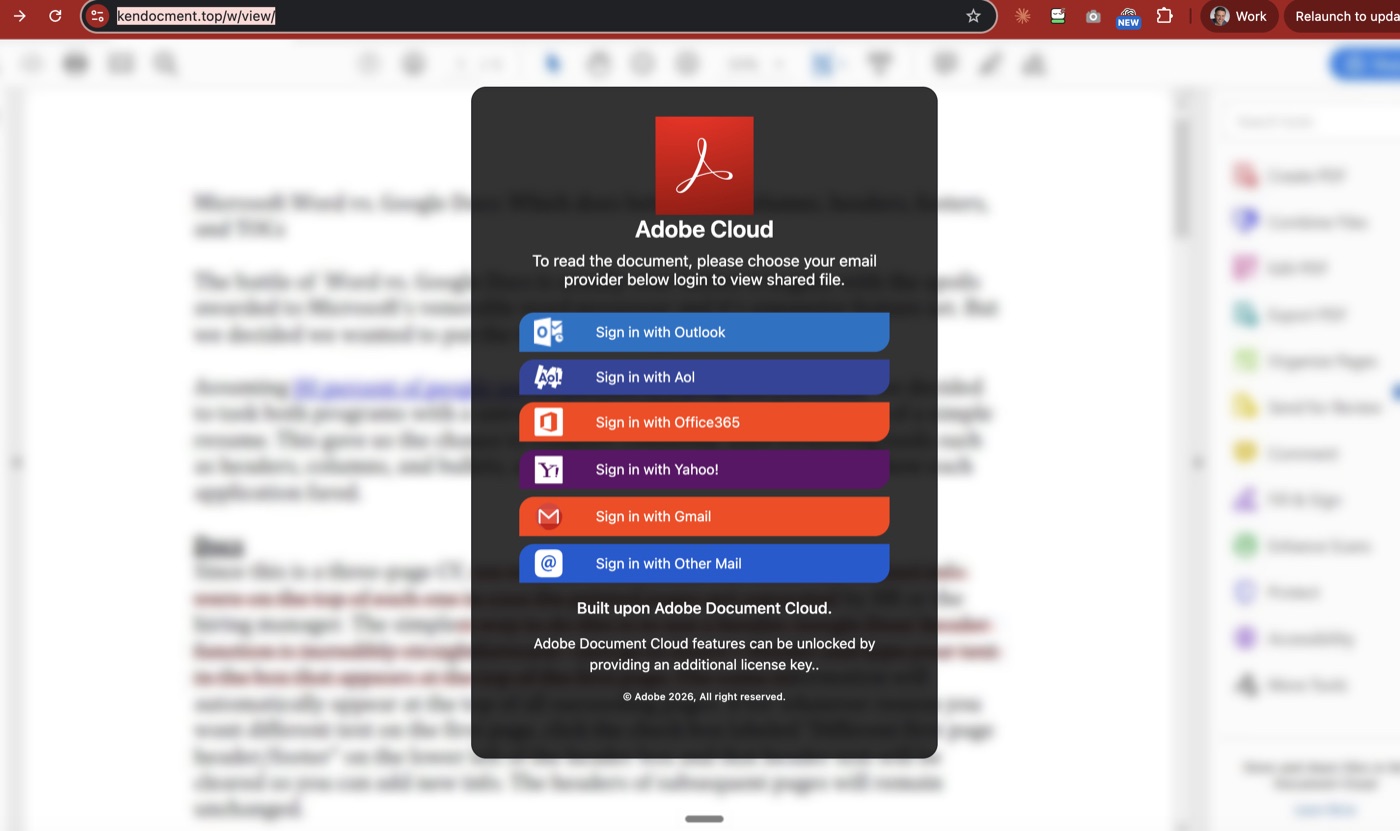
I looked up both domains in the public registration records. newdocumenttn[.]top was registered on September 29, about three weeks before the email arrived. kendocment[.]top was registered on October 20. Two days before it landed in my inbox. Same registrar for both.
A two-day-old domain asking for your Gmail password is about as clear a signal as exists on the internet.
Why AI makes this worse
Fake login kits like this one have been around for a decade. The email is what changed.
For years the best phishing filter was a human reading the message and thinking "nobody writes like that." Bad grammar, odd phrasing, wrong tone. That filter is gone. A language model writes a warm, fluent, professional reference request in two seconds, in any language, a thousand variations at a time so no two messages look the same to a spam filter.
And the pretext is smarter. "Please verify your account" is a request you have learned to ignore. "Someone you managed is counting on you for their next job" is a request you feel bad ignoring. It targets the exact people with the most valuable inboxes: managers, founders, executives, anyone senior enough to be listed as a reference.
The next step is personal. Your LinkedIn says who you managed and where. It takes very little work to turn that into "Jessica from your Acme days listed you as a reference." I expect to see that within the year, if it is not already landing in someone's inbox right now.
Some of these kits go further and pass your login straight through to the real Google in real time, so they catch your two-factor code too. A text-message code does not save you from that.
Nothing warned me
This is the part that bothers me most.
My email client did not put it in spam. It did not show a warning banner. It landed in my inbox looking exactly as trustworthy as a note from a client.
My browser did not flag the page either. No red screen. No "deceptive site ahead." I loaded a pixel-perfect Google login on a domain that was two days old, and the browser treated it like any other page.
I am not writing this to pile on any one vendor. Every major email and browser company is fighting this, and they block an enormous amount of junk you never see. But the gap is real, and it is structural. Most of the protection still works off blocklists: somebody reports a bad site, it gets reviewed, it gets added to a list. That takes hours or days. The attacker registers a fresh domain for a couple of dollars and starts the clock over.
The tools have the signals to do better, and in 2026 they have the AI to act on them in real time:
- A brand's login page on a domain the brand does not own. If a page draws the Google logo and a Google-style password box, and the domain is not Google's, the browser should stop me before I type. That check can run on the device, instantly, without waiting for a report.
- Domain age. A domain registered this week asking for a password should get a warning every time. Legitimate login pages do not live on domains younger than a carton of milk.
- First-time sender plus "log in to view." My email client knows I have never heard from this sender. It knows the link goes to a domain nobody in my organization has ever visited. That combination deserves a banner, even if the message itself reads perfectly.
- Read the email the way the attacker wrote it. AI wrote the lure. AI can read it too, and notice that a "reference request" names no company, no candidate, and no sender.
Until the tools catch up, the checking falls on you. So here is how to do it.
What to do about it
Careful people get phished every day. So stop relying on your eyes and let the tools do the checking.
- Check the address bar before you type a password. Every time. Google sign-in is
accounts.google.com. Microsoft islogin.microsoftonline.comorlogin.live.com. If the address is anything else, close the tab. A logo on a page proves nothing. The address is the only part the attacker cannot copy. - Use a password manager and pay attention when it goes quiet. Your password manager fills your Google password on google.com. It will not fill it on newdocumenttn.top, because the domain does not match. When autofill does not offer your password on a login page where it always does, stop. That silence is the alarm.
- Turn on passkeys or a hardware security key. This is the single biggest upgrade most people can make. A passkey is tied to the real domain, so it will not work on a fake site at all, even a perfect copy. It also defeats the kits that relay your two-factor code. Google, Microsoft, and Apple all support them now.
- Never log in from a link. If an email says you have a document waiting, go to the service yourself. Type the address or use a bookmark. If the file is real, it will be there.
- Verify the human. A reference request from a stranger? Text the person you supposedly managed and ask, "Did you list me as a reference?" If they did, they will tell you who is calling. Thirty seconds, problem solved.
- Turn up your browser's protection and keep it updated. In Chrome, go to Settings, then Privacy and security, then Security, and choose Enhanced protection. It checks sites in real time instead of waiting for a list. It will not catch everything, as my story shows, but it catches more. And when the browser says "Relaunch to update," relaunch.
- Report it. In Gmail, use the three dots and "Report phishing." You can also report the page to Google Safe Browsing at safebrowsing.google.com. Every report shortens the life of that domain for the next person, and right now those reports are a big part of how the tools learn.
If you already typed your password
It happens. Move fast and do it in this order:
- Change the password from a device you trust, by going to the real site directly.
- Sign out of all other sessions. In Google that is Security, then Your devices.
- Check for a forwarding rule or filter you did not create. Attackers love to add a quiet rule that copies your mail to them, and it survives a password change.
- Check your recovery email and phone number. Make sure they are still yours.
- If you reused that password anywhere else, change it there too. Then stop reusing passwords.
For the companies reading this
If you run a team, your phishing training probably still teaches people to look for typos. Retire that slide. The typos are gone.
Teach the pretext instead: unexpected document, login required, urgency or flattery, sender you cannot verify. Then roll out phishing-resistant sign-in (passkeys or security keys) for everyone, starting with whoever has access to money, payroll, or customer data. That one change takes an entire category of attack off the table, and it costs far less than the incident.
If you build email clients, browsers, or security products: the attackers are using AI to write the lure. Use it to read the lure. Brand impersonation on a two-day-old domain should never reach a password box without a warning.
Read the address before you type. Verify the human before the link.
If you want a second set of eyes on how your company signs in, handles email, and would respond to an account takeover, let's talk. That is exactly the kind of thing I look at in the first week of a fractional CTO engagement.
Have you gotten one of these reference requests yet? What did yours look like?